giovedì 18 dicembre 2008

Data Pump Export (expdp) and Data Pump Import(impdp)

Oracle introduced Data Pump in Oracle Database 10g Release 1. This new oracle technology enables very high transfer of data from one database to another. The oracle Data Pump provides two utilities namely:
  • Data Pump Export which is invoked with the expdp command.
  • Data Pump Import which is invoked with the impdp command.

The above two utilities have similar look and feel with the pre-Oracle 10g import and export utilities (e.g., imp and exp, respectively) but are completely separate. Meaning dump files generated by the original export utility (exp) cannot be imported by the new data pump import utility (impdp) and vice-versa.
Data Pump Export (expdp) and Data Pump Import (impdp) are server-based rather than client-based as is the case for the original export (exp) and import (imp). Because of this, dump files, log files, and sql files are accessed relative to the server-based directory paths. Data Pump requires that directory objects mapped a file system directory be specified in the invocation of the data pump import or export.
It for this reason and for convenience that a directory object be created before using the data pump export or import utilities.
For example to create a directory object named expdp_dir located at /u01/backup/exports enter the following sql statement:
SQL> create directory expdp_dir as '/u01/backup/exports'
then grant read and write permissions to the users who will be performing the data pump export and import.
SQL> grant read,write on directory dpexp_dir to system, user1, user2, user3;
Invoking Data Pump Export
Full Export Mode You can invoke the data pump export using a command line. Export parameters can be specified directly in the command line. A full export is specified using the FULL parameter. In a full database export, the entire database is unloaded. This mode requires that you have the EXP_FULL_DATABASE role.Shown below is an example
$ expdp system/ DIRECTORY=exp_dir DUMPFILE=expfull.dmp FULL=y LOGFILE=expfull.og
Schema Export Mode The schema export mode is invoked using the SCHEMAS parameter. If you have no EXP_FULL_DATABASE role, you can only export your own schema. If you have EXP_FULL_DATABASE role, you can export several schemas in one go. Optionally, you can include the system privilege grants as well.
$ expdp hr/hr DIRECTORY=exp_dir DUMPFILE=schema_exp.dmp SCHEMAS=hr,sh,oe

Table Export Mode This export mode is specified using the TABLES parameter. In this mode, only the specified tables, partitions and their dependents are exported. If you do not have the EXP_FULL_DATABASE role, you can export only tables in your own schema. You can only specify tables in the same schema.
$ expdp hr/hr DIRECTORY=exp_dir DUMPFILE=tables_exp.dmp TABLES=employees,jobs,departments

Invoking Data Pump Import The data pump import can be invoked in the command line. The export parameters can be specified directly in the command line.
Full Import Mode The full import mode loads the entire contents of the source (export) dump file to the target database. However, you must have been granted the IMP_FULL_DATABASE role on the target database. The data pump import is invoked using the impdp command in the command line with the FULL parameter specified in the same command line.
$ impdp system/ DIRECTORY=exp_dir DUMPFILE=expfull.dmp FULL=y LOGFILE=impfull.og
Schema Import Mode The schema import mode is invoked using the SCHEMAS parameter. Only the contents of the specified schemas are load into the target database. The source dump file can be a full, schema-mode, table, or tablespace mode export files. If you have a IMP_FULL_DATABASE role, you can specify a list of schemas to load into the target database.
$ impdp hr/hr DIRECTORY=exp_dir DUMPFILE=expfull.dmp SCHEMAS=hr,sh,oe

Table Import Mode This export mode is specified using the TABLES parameter. In this mode, only the specified tables, partitions and their dependents are exported. If you do not have the EXP_FULL_DATABASE role, you can import only tables in your own schema.
$ impdp hr/hr DIRECTORY=exp_dir DUMPFILE=expfull.dmp TABLES=employees,jobs,departments

mercoledì 17 dicembre 2008

How to Enable Oracle VM 2.1.2 High Availability (HA) on an Existing Server Pool using NFS Storage

In this Document
Goal
Solution
References


Applies to:

Oracle VM - Version: 2.1.2 to 2.1.2
Information in this document applies to any platform.

Goal

How to implement a High Availability (HA) fail over for an existing server pool in Oracle VM 2.1.2 using NFS. This configuration also uses ocfs2 clustering technologies (nfs + dmnfs + ocfs2 hb).

Solution

This NFS HA is using two Oracle 2.1.2 VM servers already part of a server pool (vm_pool_master.us.oracle.com, vm_pool.us.oracle.com) and one NFS server (nfs-lin.us.oracle.com).

Note: This setup has already pre-configured the ocfs2 cluster.conf and is not running iptables on both nodes.

Disabled iptables:
#/etc/init.d/iptables off ; iptables -F ; chkconfig --level 345 iptables off

Pre-configured ocfs2 cluster.conf:
http://oss.oracle.com/projects/ocfs2/dist/documentation/v1.2/ocfs2_faq.html#CONFIGURE

The servers where already part of a server pool, and confirmed live migrations where a success within VM Manager.


There is already a shared cluster root at /OVS using NFS, and not local.
[root@vm_pool_master /]# uname -a
Linux vm_pool_master 2.6.18-8.1.15.1.16.el5xen #1 SMP Fri Aug 1 18:27:30 EDT 2008 i686 i686 i386 GNU/Linux
[root@vm_pool_master /]# df -h
Filesystem Size Used Avail Use% Mounted on
/dev/sda2 3.0G 2.1G 696M 76% /
/dev/sda1 99M 40M 55M 43% /boot
tmpfs 257M 0 257M 0% /dev/shm
nfs-lin.us.oracle.com:/OVS
228G 179G 37G 83% /OVS

[root@vm_pool_master /]#
[root@vm_pool_master /]# ls -al /OVS
total 20
drwxr-xr-x 5 root root 4096 Sep 30 16:22 .
drwxr-xr-x 30 root root 4096 Sep 30 15:36 ..
drwxr-xr-x 2 root root 4096 Sep 30 16:12 iso_pool
drwxr-xr-x 2 root root 4096 Sep 30 16:12 running_pool
drwxr-xr-x 2 root root 4096 Sep 30 16:12 seed_pool
[root@vm_pool_master /]#


[root@vm_pool /]# uname -a
Linux vm_pool 2.6.18-8.1.15.1.16.el5xen #1 SMP Fri Aug 1 18:27:30 EDT 2008 i686 i686 i386 GNU/Linux
[root@vm_pool /]# df -h
Filesystem Size Used Avail Use% Mounted on
/dev/sda2 3.0G 825M 2.0G 30% /
/dev/sda1 99M 44M 51M 47% /boot
tmpfs 272M 0 272M 0% /dev/shm
nfs-lin.us.oracle.com:/OVS
228G 179G 37G 83% /OVS

[root@vm_pool /]#
[root@vm_pool /]# ls -al /OVS
total 20
drwxr-xr-x 5 root root 4096 Sep 30 16:22 .
drwxr-xr-x 30 root root 4096 Sep 30 15:36 ..
drwxr-xr-x 2 root root 4096 Sep 30 16:12 iso_pool
drwxr-xr-x 2 root root 4096 Sep 30 16:12 running_pool
drwxr-xr-x 2 root root 4096 Sep 30 16:12 seed_pool
[root@vm_pool /]#


1. From VM Server pool master to setup ocfs2, this script
# /usr/lib/ovs/ovs-cluster-configure
generates the /etc/ocfs2/cluster.conf file if it does not already exist and configures and starts the o2cb service. Here we pre-configure ocfs2 cluster.conf:
[root@vm_pool_master /]#
[root@vm_pool_master /]# cat /etc/ocfs2/cluster.conf
node:
ip_port = 7777
ip_address = 10.1.1.10
number = 0
name = vm_pool_master
cluster = ocfs2

node:
ip_port = 7777
ip_address = 10.1.1.11
number = 1
name = vm_pool
cluster = ocfs2

cluster:
node_count = 2
name = ocfs2
[root@vm_pool_master /]#
[root@vm_pool_master /]# /etc/init.d/o2cb configure
Configuring the O2CB driver.

This will configure the on-boot properties of the O2CB driver.
The following questions will determine whether the driver is loaded on
boot. The current values will be shown in brackets ('[]'). Hitting
without typing an answer will keep that current value. Ctrl-C
will abort.

Load O2CB driver on boot (y/n) [n]: y
Cluster to start on boot (Enter "none" to clear) [ocfs2]:
Specify heartbeat dead threshold (>=7) [31]:
Specify network idle timeout in ms (>=5000) [30000]:
Specify network keepalive delay in ms (>=1000) [2000]:
Specify network reconnect delay in ms (>=2000) [2000]:
Writing O2CB configuration: OK
Loading module "configfs": OK
Mounting configfs filesystem at /config: OK
Loading module "ocfs2_nodemanager": OK
Loading module "ocfs2_dlm": OK
Loading module "ocfs2_dlmfs": OK
Mounting ocfs2_dlmfs filesystem at /dlm: OK
Starting O2CB cluster ocfs2: OK
[root@vm_pool_master /]#
[root@vm_pool_master /]#
[root@vm_pool_master /]# /etc/init.d/o2cb status
Module "configfs": Loaded
Filesystem "configfs": Mounted
Module "ocfs2_nodemanager": Loaded
Module "ocfs2_dlm": Loaded
Module "ocfs2_dlmfs": Loaded
Filesystem "ocfs2_dlmfs": Mounted
Checking O2CB cluster ocfs2: Online
Heartbeat dead threshold: 31
Network idle timeout: 30000
Network keepalive delay: 2000
Network reconnect delay: 2000
Checking O2CB heartbeat: Not active
[root@vm_pool_master /]#
[root@vm_pool_master /]#
[root@vm_pool_master /]# /usr/lib/ovs/ovs-cluster-configure
O2CB cluster ocfs2 already online
[root@vm_pool_master /]#


2. On the VM Server Pool Master, configure the shared storage with
# /usr/lib/ovs/ovs-makerepo source C description. 
This creates a .ovsrepo file in the NFS mounted /OVS, and updates /etc/ovs/repositories file :
[root@vm_pool_master /]# /usr/lib/ovs/ovs-makerepo nfs-lin.us.oracle.com:/OVS C "ha for prod_pool"
Initializing NEW repository nfs-lin.us.oracle.com:/OVS
Updating local repository list.
ovs-makerepo complete
[root@vm_pool_master /]#
[root@vm_pool_master /]#
[root@vm_pool_master /]# more /OVS/.ovsrepo
OVS_REPO_UUID=05B0CE2EFE9C4842A2EFA39926657236
OVS_REPO_SHARED=1
OVS_REPO_DESCRIPTION=ha for prod_pool
OVS_REPO_VERSION=1
[root@vm_pool_master /]#
[root@vm_pool_master /]# cat /etc/ovs/repositories
# This configuration file was generated by ovs-makerepo
# DO NOT EDIT
[root@vm_pool_master /]#


3. On the VM Server Pool Master, check the cluster has been configured correctly and is running:
# /usr/lib/ovs/ovs-cluster-check --master --alter-fstab
where
--master parameter should only be used on the Server Pool Master.
--alter-fstab parameter modifies the /etc/fstab file.

A backup of the original /etc/fstab file is created in /tmp.

This also creates a .server_pool_hb file on your /OVS mount along with removing any mounts in your /etc/fstab file for /OVS as now all the mounting of this will be done from the /etc/ovs/repositories file.:

[root@vm_pool_master /]# /usr/lib/ovs/ovs-cluster-check --master --alter-fstab
O2CB cluster ocfs2 already online
300+0 records in
300+0 records out
314572800 bytes (315 MB) copied, 169.856 seconds, 1.9 MB/s
mkfs.ocfs2 1.2.7
Filesystem label=server_pool_hb
Block size=2048 (bits=11)
Cluster size=4096 (bits=12)
Volume size=314572800 (76800 clusters) (153600 blocks)
5 cluster groups (tail covers 13312 clusters, rest cover 15872 clusters)
Journal size=8388608
Initial number of node slots: 32
Creating bitmaps: done
Initializing superblock: done
Writing system files: done
Writing superblock: done
Writing backup superblock: 0 block(s)
Formatting Journals: done
Writing lost+found: done
mkfs.ocfs2 successful

Cluster setup complete.
[root@vm_pool_master /]#
[root@vm_pool_master /]#
[root@vm_pool_master /]# ls -al /OVS
total 307528
drwxr-xr-x 5 root root 4096 Sep 30 16:22 .
drwxr-xr-x 30 root root 4096 Sep 30 15:36 ..
drwxr-xr-x 2 root root 4096 Sep 30 16:12 iso_pool
-rw-r--r-- 1 root root 122 Sep 30 16:12 .ovsrepo
drwxr-xr-x 2 root root 4096 Sep 30 16:12 running_pool
drwxr-xr-x 2 root root 4096 Sep 30 16:12 seed_pool
-rw-r--r-- 1 root root 314572800 Sep 30 16:54 .server_pool_hb
[root@vm_pool_master /]#


4. Log into you VM Manager to check and enable the HA feature.

Under Server Pools Tab -> Edit your Server Pool you will see:
"High Availability Infrastructure: Check"
Click on Check button, you should see:
All the servers should share the same storage.
High Availability configuration should be correctly setup.
Now you can enable HA.
Checking the box "Enable High Availability: " and then Apply. Which should return:
The Server pool updated successfully.
In the VM Manager you should now see under the "High Availability Status" column Enabled for the Pool in the "Server Pools" tab.


5. The second VM server will show /etc/ovs/repositories and /etc/ocfs2/cluster.conf matching that of the VM Server pool master. The /OVS mount, must be maintained in the /etc/ovs/repositories file.
Confirm no /OVS mount is in /etc/fstab, a backup should be in the /tmp directory:
[root@vm_pool /]#
[root@vm_pool /]#
[root@vm_pool /]# cat /etc/ocfs2/cluster.conf
node:
ip_port = 7777
ip_address = 10.1.1.10
number = 0
name = vm_pool_master
cluster = ocfs2

node:
ip_port = 7777
ip_address = 10.1.1.11
number = 1
name = vm_pool
cluster = ocfs2

cluster:
node_count = 2
name = ocfs2
[root@vm_pool /]#
[root@vm_pool /]# more /etc/ovs/repositories
# This configuration file was generated by ovs-makerepo
# DO NOT EDIT
[root@vm_pool /]#
[root@vm_pool /]# more /etc/fstab
LABEL=/ / ext3 defaults 1 1
LABEL=/boot /boot ext3 defaults 1 2
devpts /dev/pts devpts gid=5,mode=620 0 0
tmpfs /dev/shm tmpfs defaults 0 0
proc /proc proc defaults 0 0
sysfs /sys sysfs defaults 0 0
LABEL=SWAP-sda5 swap swap defaults 0 0
#
[root@vm_pool /]#
[root@vm_pool /]# diff /etc/fstab /tmp/fstab.vzJsGq3831
9a10
> nfs-lin.us.oracle.com:/OVS /OVS nfs rw,bg,intr,hard,timeo=600,wsize=32768,rsize=32768,nfsvers=3,tcp 0 0
[root@vm_pool /]#


6. Confirm ocfs2 is loaded and set to start on boot along with the repositories on both VM servers.:
[root@vm_pool /]# /etc/init.d/o2cb status
Module "configfs": Loaded
Filesystem "configfs": Mounted
Module "ocfs2_nodemanager": Loaded
Module "ocfs2_dlm": Loaded
Module "ocfs2_dlmfs": Loaded
Filesystem "ocfs2_dlmfs": Mounted
Checking O2CB cluster ocfs2: Online
Heartbeat dead threshold: 31
Network idle timeout: 30000
Network keepalive delay: 2000
Network reconnect delay: 2000
Checking O2CB heartbeat: Active
[root@vm_pool /]#
[root@vm_pool /]# chkconfig --list | egrep "ocfs2|ovs"
ocfs2 0:off 1:off 2:on 3:on 4:on 5:on 6:off
ovs-agent 0:off 1:off 2:on 3:on 4:on 5:on 6:off
ovsrepositories 0:off 1:off 2:on 3:on 4:on 5:on 6:off
[root@vm_pool /]#
[root@vm_pool /]# ls -al /OVS
total 307528
drwxr-xr-x 5 root root 4096 Sep 30 16:22 .
drwxr-xr-x 30 root root 4096 Sep 30 15:36 ..
drwxr-xr-x 2 root root 4096 Sep 30 16:12 iso_pool
-rw-r--r-- 1 root root 122 Sep 30 16:12 .ovsrepo
drwxr-xr-x 2 root root 4096 Sep 30 16:12 running_pool
drwxr-xr-x 2 root root 4096 Sep 30 16:12 seed_pool
-rw-r--r-- 1 root root 314572800 Sep 30 16:54 .server_pool_hb
[root@vm_pool /]#


Note, you can monitor for errors in the /var/log/ovs-agent/ovs_operation.log on the VM Server pool master during setup.
Success Log was:

"2008-09-26 20:03:24" INFO=> ha_sync_shared_storage_mount: among servers(['vm_pool_master.us.oracle.com', 'vm_pool.us.oracle.com'])...
"2008-09-26 20:03:24" INFO=> ha_mount_shared_storage: success
"2008-09-26 20:03:24" INFO=> ha_sync_shared_storage_mount: success.
"2008-09-26 20:03:25" INFO=> ha_setup_ocfs2_cluster: trying to reconfigure the cluster...
"2008-09-26 20:03:26" INFO=> ha_setup_ocfs2_cluster: success.
"2008-09-26 20:03:26" INFO=> ha_start_cluster_service: success.
"2008-09-26 20:03:27" INFO=> ha_start_agent_guard: success.
"2008-09-26 20:03:27" INFO=> ha_start_agent_guard_all: success.
"2008-09-26 20:03:27" INFO=> ha_setup_cluster_infrastructure: success.
"2008-09-26 20:03:27" INFO=> set_pool_ha_enable: pool_ha_enable=True


A failure Log (which was from a mis-configured ocfs2) was:

"2008-09-26 18:57:37" INFO=> ha_chec _oracle_vm_version: among servers(['vm_pool_master.us.oracle.com', 'vm_pool.us.oracle.com'])...
"2008-09- 6 18:57:38" INFO=> ha_check_oracle_vm_version: success:oracle_vm_version=['2.1.2']
"2008-09- 6 18:57:38" INFO=> ha_check_agent_version: among servers(['vm_pool_master.us.oracle.com', vm_pool.us.oracle.com'])...
"2008-09-26 18:57:38" INFO=> ha_check_agent_version: success:age t_version=2.2-51
"2008-09-26 18:57:38" INFO=> ha_precheck_storage_mount: success.
"2 08-09-26 18:57:38" INFO=> ha_check_cluster_prerequisite: success.
"2008-09-26 18:57:38& uot; INFO=> ha_check_shared_storage: among servers(['vm_pool_master.us.oracle.com', 'vm_pool.us.oracle.com'])...
"2008-09-26 18:57:38" INFO=> ha_check_shared_storage: success. /OVS/['']
"2008-09-26 18:57:38" INFO=> ha_check_cluster_status: among servers(['vm_pool_master.us.oracle.com', 'vm_pool.us.oracle.com'])...

"2008-09-26 18:57:39" ERROR=> ha_check_cluster_status: failed. =>
StackTrace:
File "/opt/ovs-agent-2.2/OVSSiteHA.py", line 308, in ha_check_cluster_status
raise Exception(rs)
>
StackTrace:
File "/opt/ovs-agent-2.2/OVSSiteHA.py", line 311, in ha_check_cluster_status
raise Exception("srv('%s'). failed! => %s" % (hostname, errmsg))
"2008-09-26 18:57:39" ERROR=> ha_check_cluster_infrastructure: error. =>
StackTrace:
File "/opt/ovs-agent-2.2/OVSSiteHA.py", line 308, in ha_check_cluster_status
raise Exception(rs)
>
StackTrace:
File "/opt/ovs-agent-2.2/OVSSiteHA.py", line 311, in ha_check_cluster_status
raise Exception("srv('%s'). failed! => %s" % (hostname, errmsg))
>
StackTrace:
File "/opt/ovs-agent-2.2/OVSSiteHA.py", line 373, in ha_check_cluster_infrastructure
raise Exception(msg)


References

http://download.oracle.com/docs/cd/E11081_01/doc/doc.21/e10898/ha.htm#insertedID1
http://download.oracle.com/docs/cd/E11081_01/doc/doc.21/e10898/repository.htm#insertedID1
http://oss.oracle.com/projects/ocfs2/dist/documentation/v1.2/ocfs2_faq.html#CONFIGURE

Keywords

OCFS2 ; ORACLE~VM ; NFS ; HIGH~AVAILABILITY ; OCFS2_DLM_EVICTION_CB ; ORACLE~VM~SERVER ;
Thanks MetaLink

La configurazione di Samba

La configurazione di Samba (i demoni smbd e nmbd) viene gestita dal file smb.conf, un normale file di testo ASCII con queste caratteristiche di massima:

- I parametri di configurazione vengono forniti nella forma opzione = valore
- Il file viene diviso in più sezioni che definiscono una share (condivisione), oltre alla sezione generale [global]. Ogni sezione si indica fra parentesi quadre: [printers]
- Le righe di commento sono precedute da asterisco (#) o punto e virgola (;)
- Righe di configurazione possono estendersi su più righe di smb.conf utilizzando una backslash (\) a fine riga
- Le opzioni e i valori sono case insensitive, ma se si indica un path nel file system questo è case sensitive
- Per separare una serie di valori possono essere usati sia virgole (,) che spazi vuoti ( )
- Possono essere utilizzate delle variabili, precedute dal simbolo percento (%) all'interno dei valori (es: path = /home/%u)
- Si può includere a smb.conf un altro file di configurazione con l'opzione include (es: include = /etc/samba/smb.conf.%a)

Le opzioni di configurazione possono essere di 2 tipi fondamentali:
- global, appaiono solo nella sezione [global] e definiscono i comportamente generali del server Samba
- share, appaiono all'interno di specifiche share e definiscono il comportamento riguardo alla specifica share. Se appaiono in [global] definiscono i comportamenti di default.

Qualsiasi opzione deve essere inclusa una una sezione. Esistono le seguenti sezioni speciali:
[global] Sempre presente, di solito ad inizio file, definisce le opzioni di default valide per tutte le condivisioni (possono essere sovrascritte da opzioni contrarie presenti nelle specifiche sezioni) e i parametri generali di configurazione del server.
[printers] E' una sezione speciale utilizzata per condividere l'accesso via rete a delle stampanti
[homes] E' una sezione speciale che coincide con la home directory di un utente autenticato. Di fatto è una condivisione generica con il nome dell'utente che accede a Samba.

Oltre a queste sezioni speciali ne possono esistere un numero arbitrario di altre, il nome di ogni sezione coincide con il nome della relativa condivisione, così come appare al client SMB.


La sezione [global] è praticamente presente in ogni smb.conf.
Qui si definiscono le configurazioni generali riguardanti il server Samba e i suoi comportamenti di default.
Vediamo nel dettaglio alcune opzioni:

CONFIGURAZIONI BASE NETBIOS

Netbios name
Definisce il nome NetBios della macchina, così come viene visualizzato in rete. Di default coincide con il nome DNS per la parte relativa all'host (es: pippo.dominio.it prende di default il nome PIPPO). Es:
netbios name = PLUTONE

Server string
E' il commento che si può leggere visualizzando i dettagli su un host in rete. non è indispensabile ma può essere utile per indicare le funzioni o le caratteristiche della macchina. E' possibile usare variabili, per esempio:
server string = File Server - Samba %v (%h)

Workgroup
Definisce il workgroup di cui fa parte il server Samba. Di default il valore è "WORKGROUP", definito in fase di compilazione, ma può essere cambiato. Es:
workgroup = INTRANET

Netbios aliases
Questa opzione permette di assegnare più nomi NetBios allo stesso server oltre a quello definito con netbios name, in modo da farlo comparire fra le Risorse di rete di Windows come macchine diverse, su cui è necessario eseguire login autonomi, anche se di fatto restano lo stesso server. Questa funzionalità può essere utile. per esempio, per raggruppare su un singolo server diversi server SMB che prima risiedevano su macchine diverse senza modificare alcun parametro sui client. Es:
netbios aliases = vendite marketing amministrazione

GESTIONE DEL NETWORKING

Hosts allow - Hosts deny
Queste opzioni definiscono l'accesso al server. Hanno la stessa logica dei file /etc/hosts.allow e hosts.deny, possono essere presenti sia nella [global] che definiti per singola share. Come argomento si aspettano l'IP di una network o di un host (considerando che la rete 192.168.0.0/24, per esempio, si indica 192.168.0.) oppure un singolo hostname (pippo.dominio.com) o un nome di dominio o sottodominio (.dominio.com).
Sono accettati anche gli argomenti speciali ALL (tutti gli IP) e EXCEPT, seguito da indirizzi o nomi di host.
Samba segue una logica ben precisa per gestire gli accessi con queste opzioni:
- Se non sono definite, viene permesso l'accesso da ogni IP
- Se sono definite nella [global] queste si applicano ANCHE per le singole share (anche se si sono specificate a livello di share)
- Se esiste solo hosts allow viene permesso quanto specificato come argomento e vengono esclusi tutti gli altrti IP
- Se esiste solo hosts.deny sarà permesso l'accesso a tutti gli IP tranne a quelli specificati come argomento
- Se esistono sia hosts allow che hosts.deny vengono esclusi TUTTI gli IP tranne quelli che sono presenti in hosts.allow E non sono presenti in hosts.deny.
Nell'esempio che segue viene dato accesso a 192.168.0.10 e a tutti gli host della rete 10.0.0.0/24 tranne 10.0.0.15:
hosts allow = 10.0.0. 192.168.0.10
hosts deny = 10.0.0.15

Questo esempio corrisponde a:
hosts allow = 192.168.0.10 10.0.0. EXCEPT 10.0.0.15

Se invece si vuole permettere l'accesso solo alla rete 192.168.0.0/16 si può scrivere semplicemente:
hosts allow 192.168.
che coincide con:
hosts deny = ALL EXCEPT 192.168.

Interfaces - Bind Interfaces only
interfaces definisce su quale interfacce di rete dell'host locale Samba si metterà in ascolto. Di default Samba utilizza l'interfaccia di rete principale, ma se si vuole che resti in ascolto su altre interfacce o si vuole essere certi che Samba scelga l'interfaccia voluta, queste vanno specificate tramite il loro indirizzo IP:
interfaces = 10.0.0.3/24 192.168.0.4/255.255.255.0
Il comando bind interfaces only può avere valore yes o no (default). Se viene abilitato Samba ignorerà ogni pacchetto, anche di broadcast, che origina da rete diverse da quelle specificate con interfaces. Notare che se si abilita, è necessario includere esplicitamente il localhost (127.0.0.1) nell'elenco delle interfacce su cui Samba deve stare in listening.
bind interfaces only = yes

GESTIONE DEL LOGGING

Log file
Specifica su quale file Samba va a scrivere i suoi log. L'argomento può contenere delle variabili, per cui è possibile avere diversi file di log per ogni utente, per tipo di client ecc. Per creare un log diverso per ogni client NetBios, per esempio, si può scrivere:
log file = /var/log/samba.log.%m

Log level
Specifica il livello di logging da usare, va da 0 (minimo) a 10 (estremamente verboso). Il valore di default è 1, su un server normale dovrebbe essere di 1 o 2, se si deve fare un po' di troubleshooting usare il livello 3, valori superiori servono soprattutto a chi sviluppa su Samba e rallentano notevolmente le operazioni:
log level = 2

Max Log Size
Definisce la dimensione massima in Kilobyte dei file di log. Quando viene raggiunto il limite, il file di log viene rinominato aggiungendo il suffisso .old (vengono eliminati eventuali file .old esistenti creati precedentemente) e si riparte con un file di log vuoto. Il valore di defalt è 5000 Kb, il valore suggerito dipende fondamentalmente dallo spazio su disco disponibile, evitare di impostare un valore troppo alto che rischia di occupare tutto lo spazio (considerando anche il file .old):
max log size = 2000

Debug Timestamp
Con questa opzione è possibile specifcare se inserire data e ora per ogni riga di log generata. Coincide con l'opzione timestamp logs. Il valore di default è yes per cui nei log sono indicate data e ora in cui avvengono gli eventi. Per non specificare il timestamp scrivere:
debug timestamp = no

Syslog e syslog only
Queste opzioni regolano la possibilità di usare il demone syslog, invece o parallelamente al logging diretto.
Per poter usare il syslog è necessario compilare Samba con configure --with-syslog e configurare /etc/syslog.conf per gestire la facility daemon. Ad esempio con una riga tipo:
daemon.* /var/log/daemon.log
Il valore specificato (da 0 a 10, default 1) indica quali messaggi di log inviare a syslog e, in riferimento agli argomenti dell'opzione log level, cosa loggare direttamente sui file di log interni. Ad esempio:
log level = 3
syslog = 2

Con queste opzioni i log di livello 0 e 1 (inferiori a 2) vengono mandati a syslog, quelli di livello 2 e 3 (compresi tra syslog e log level) vengono scritti sul file di log interno.
Per loggare solo su syslog si deve attivare l'opzione syslog only:
syslog only = yes

GESTIONE DEL BROWSING

Local master - Domain master
Queste opzioni servono per spingere Samba a cercare di diventare rispettivamente Local Master Browser (il server che mantiene la browse list per una rete IP) e Domain Master Browser (il server che mantiene la browse list per un intero workgroup, anche esteso su più reti IP, nel qual caso raccoglie e coordina lo scambio di browse list dai Local Master Browser remoti). Di default Samba ha attivata l'opzione Local Master (con cui semplicemente gli viene detto di partecipare alle elezioni, senza la certezza di vincerle) e non ha attivata l'opzione Domain Master (è bene che il Domain Master Browser sia la stessa macchina che fa eventualmente da Primary Domain Controller, sia esso un Samba o un Windows server). Le impostazioni di default sono quindi:
local master = yes
domain master = no


Preferred Master - OS Level
Con queste opzioni si gestisce il comportamento di Samba nelle elezioni e la sua possibilità di vincerle.
La prima impone a Samba di chiamare un'elezione ogni volta che entra in rete e gli imposta una probabilità leggermente superiore di vincerle rispetto ad altre macchine con lo stesso livello. E' bene impostarla a yes quando si configura Samba come Domain Master Browser o Local Master Browser:
preferred master = yes
domain master = yes

E' comunque raccomandabile non avere troppe macchine in rete (Windows o Samba) che cercano di partecipare alle elezioni per evitare inutili e ripetuti broadcast e possibili incongrenze sulla browse list di riferimento.
L'opzione OS Master, invece setta esplicitamente il livello con cui Samba si presenta alle elezioni. Può avere valore da 0 a 255, più è alto e maggiore la possibilità di diventare Master Browser. Un valore di 34 basta per far vincere tutte le elezioni con server Windows ad eccezione di un PDC. Il valore di default è 20. Il seguente esempio dovrebbe bastare per vincere ogni elezione (ovviamente ad eccezione di altri server Samba con un OS level superiore):
os level = 65.

Announce As - Announce version
Queste opzioni definiscono come Samba si presenta in rete. Announce as può avere come valori Win95, NT o WfW il default è:
announce as = NT
Announce version specifica la versione di Samba. Attualmente si presenta di default come:
announce version = 4.9
Generalmente non serve cambiare queste impostazioni di default.

remote browse sync - remote announce
Queste opzioni permettono di sincronizzare la browse list di un server Samba quando esistono diversi local master su reti diverse.
La prima permette di richiedere la sincronizzazione della brose list dai server delle reti remote specificate:
remote browse list = 10.0.0.255 192.168.0.255
Con la seconda opzione si può esplicitamente annunciare il server locale, con un workgroup arbitrario, ai server sulla rete remota specificata:
remote announce = 192.168.0.255/WROKGROUP
In entrambi i casi si possono indirzare direttamente gli IP dei server remoti o gli indirizzi di broadcast della loro rete (in questo caso il "directed broadcast" deve poter essere consentito sulla rete remota, di default i router Cisco non lo permettono).

GESTIONE DELLE PASSWORD
E' importante configurare la logica con cui Samba gestisce l'autenticazione e come eventualmente sincronizza le sue password con quelle di sistema. I dati relativi agli utenti sono mantenuti nel file smbpasswd, che a sua volta si può modificare con l'omonimo comando shell.
Sulla gestione delle password esistono varie opzioni di configurazione.

encrypt passwords
Di default ha valore NO, non prevedendo l'invio in chiaro delle password via rete. Sui Windows recenti, comunque, (tutti esclusi NT4 pre SP3 e Windows 95) le password vengono inviate criptate. Per cui o si modifica il registro (esiste .reg adatto nel tar.gz ufficiale) sui Windows o, meglio, si abilita la criptazione delle password:
encrypt passwords = yes.

password level
Di default samba esegue il matching delle password in lowercase (con caratteri minuscoli), compresa la prima lettera.
Password level permette di specificare, come nel caso di username level, quante lettere al massimo si possono rendere maiuscole per i tentativi di connettersi ad una smb share.
password level = 2

null password
Abilita o Disabilita la possibilità di utilizzare password (cryptate e non cryptate) pari a null.
Il valore di default è NO.
password level = yes

smb passwd file
Specifica il path del file contenente le password cryptate.
Il valore di default è : /usr/local/samba/private/smbpasswd
smb passwd file = /etc/samba/smbpasswd

CONFIGURAZIONE DEI DOMINI
SAMBA permette di usufruire dei domini di windows in varie modalità:

- PDC, samba può essere configurato come primary domain controller per i client windows/unix.
- BDC, (backup domain controller) features non del tutto funzionante per le versioni correnti (2.x), occorre aspettare la versione 3.x per avere il supporto completo.
- Host, facente parte di un dominio esistente.

Di seguito sonon riportate alcune opzioni utili per configurare il logon dei client nel dominio:

domain logons
Permette di loggarsi nel dominio tramite samba configurato come PDC server.
domain logons = yes

logon script
Specifica lo script che verrà lanciato sui client una volta loggati nel dominio.
logon script = logon.bat

logon home
Specifica l'home dell'utente, per i comandi DOS NET.
logon home = \\server\home\%U

logon path
Identifica la locazione dei roaming file.
logon path = \\server\profile\%U

RISOLUZIONE DEI NOMI CON SAMBA
E' possibile utilizzare una o più delle seguenti modalità di risoluzione dei nomi:

- Broadcasting
- LMHOST file
- Unix /etc/host o NIS
- WINS (Windows Internet Name Service), samba ha la facoltà di appoggiarsi ad un WINS server esterno oppure configurare lo stesso SAMBA per fungere da WINS server.

name resolve order
Opzione che permette di specificare con quali metodi e il rispettivo ordine da utilizzare per la risoluzione dei nomi.
name resolve order = wins hosts bcast

wins server
Permette di appoggiarsi ad un wins esterno specificando semplicemente l'IP, sarà SAMBA stesso a ridirigere le singole richieste al server specificato.
wins server = 10.0.0.100

wins proxy
Abilita il forwarding di tutte le richieste di risoluzione dei nomi anche ad WINS che sono esterni alla subnet del SAMBA server.
wins proxy = yes

wins support
Abilita il WINS server di SAMBA.
wins support = yes

dns proxy
Permette di appoggiarsi al DNS configurato sul server SAMBA (/etc/resolv.conf) per la risoluzione dei nomi fallita tramite WINS.
dns proxy = yes


Client per il managment delle ACL delle share SMB in un server NT.

smbcacls //server1/share1 filename [options]

Opzioni Comuni:
-U Opzione per specificare l'utente utilizzato per conettersi al servizio remoto
-A [acls] Aggiunge una ACL all'access list specificata
-D [acls] Elimina le ACL specificate in linea di comando
-n Visualizza le ACL in formato numerico

Formato ACL:
Le ACL sono formate da singole o più entry separate dalla virgola o più semplicemente ogni entry deve corrispondere ad una nuova linea. Esempio:
Specifica il numero della revisione della ACL lato NT server
REVISION:
Owner e Group specificano owner e group sid dell'oggetto
OWNER:

GROUP:
ACL
ACL:://


Le opzioni inserite nella sezione [share] fanno riferimento alla configurazione da applicare alla singola risorsa condivisa o alle share di sistema come [netlogon] o [printer] per abilitare/disabilitare alcune funzioni di samba stesso.

CONFIGURAZIONI BASE PER LE SINGOLE SHARE
Le seguenti opzioni sono le tipiche opzioni utilizzate in tutti i tipi di share e ne definiscono i caratteri generali come per esempio il nome della risorsa che si condivide.

[nome share]
Il nome delle singole share è settato con la seguente entry [nome share] nel file di configurazione dopo le opzioni relative alla sezione [global].
[docs]

path
Sinonimo di directory, indica il path locale della risorsa da condividere tramite Samba.
Nel caso in cui la share si riferisce ad una stampate identifica la directory che avrà la funzione da spool per la stampante stessa.
path = /home/docs

comment
E' possibile affiancare un commento al nome delle share, che verrà visualizzato lato client. Utile per descrivere il contenuto della risorsa.
comment= Documenti comuni

GESTIONE ACCESSI
La gestione degli accessi alle risorse può avvenire in vari modi a seconda del tipo di configurazione adottata nelle global options.

valid users - invalid user
La prima opzione viene utilizzata per specificare gruppi o utenti che possono accedere alla risorsa, la seconda invece per negarne definitivamente l'accesso.
valid users = pippo pluto joe

admin user
Determina quali utenti che accedono alla risorsa possono eseguire operazioni da utente root.
admin user = joe

guest ok
Abilita l'accesso alla risorsa all'utente guest.
guest ok = yes

guest account
Unix account utilizzato come guest access. L'account di default è nobody.
guest account = webmaster

guest only
Di default settata a no, limita l'accesso alla risorsa all'utente guest.
guest only = no

writable (write ok) -read only
Opzioni utilizzabili sia nella sezione global che share permette di abilitare o disabilitare gli attributi di scrittura.
I valori di default permettono la sola lettura (read only = yes e writable = no).
read only = no
writable = yes


browsable
Nega o permette la visualizzazione nella lista delle risorse del server samba. Di default è settata a yes.
browsable = yes

read - write list
Opzioni che permettono di eseguire un override della configurazione base di una share per la lista degli utenti specificati.
Rispettivamente, read list permette l'accesso con i soli diritti di lettura ad una share scrivibile mentre write list specifica quali utenti possono accedere, anche con i permessi di scrittura, ad una risorsa configurata per acconsetire gli accessi in sola lettura.
write list = webmasters developers

max connections
Specifica il numero massimo di connessioni ad una share. Settata di default a 0, permette connessioni illimitate alle risorse.
max connections = 10

SYSTEM SHARE
Samba prevede delle share con un nome specifico per abilitare alcune features o lo sharing di risorse particolari come stampanti.

netlogon
Share indispensabile nel caso in cui samba server faccia da PDC, permette il logon dei client nel dominio. Questa share deve avere le seguenti caratteristiche:
- Il nome non è modificabile, [netlogon]
- Non è possibile visualizzarla e scriverci.
- Non è possibile accederci come utente guest.
[netlogon]
Comment = share to domain logon
path = /samba/logon
public = no
writabl e = no
browsable = no


profile
E' possibile specificare tramite la share [profile] la risorsa che dovrà fungere da repository per tutti i roaming profile. Questa share non deve essere visualizzata nelle risorse dispobilli del server ma deve essere possibile scriverci.
[profile]
comment = Profili Utenti
path = /samba/profile
create mode = 0600
directory mode = 0700
writable = yes
browsable = no


homes
Share che visualizza in modo automatico la home dell'utente, senza dover mettere le relative entry nel file smb.conf per i singoli utenti. Tale share che prende il nome dell'utente è visibile e scrivibile solo dall'utente con cui si è eseguito il login sul server.
[homes]
comment = Home Directories
valid users = %S
read only = No
create mask = 0664
directory mask = 0775
browseable = No

Esiste la possibilità di vietare il salvataggio di files con una determinata estensione in una cartella condivisa tramite SAMBA.

Occorre semplicemente aggiungere nella sezione [global] del file smb.conf (/etc/samba/smb.conf) il seguente parametro:
veto files = /*.mp3/ /*.wav/ /*.mpeg/ /*.avi/
In questo caso non è permesso il salvataggio di files con estensione: mp3, wav, mpeg ed avi.


Thanks OpenSkill

Oracle Database 10g Release 2 (10.2.0.1) Installation On Red Hat Enterprise Linux 5 (RHEL5)

In this article I'll describe the installation of Oracle Database 10g Release 2 (10.2.0.1) on Red Hat Enterprise Linux 5 (RHEL5). The article is based on a server installation similar to this, with a minimum of 2G swap, secure Linux disabled and the following package groups installed:
  • GNOME Desktop Environment
  • Editors
  • Graphical Internet
  • Text-based Internet
  • Development Libraries
  • Development Tools
  • Legacy Software Development
  • Server Configuration Tools
  • Administration Tools
  • Base
  • Legacy Software Support
  • System Tools
  • X Window System
Alternative installations may require more packages to be loaded, in addition to the ones listed below.

Download Software

Download the following software:

Unpack Files

Unzip the files:
unzip 10201_database_linux32.zip
You should now have a single directory containing installation files. Depending on the age of the download this may either be named "db/Disk1" or "database".

Hosts File

The /etc/hosts file must contain a fully qualified name for the server:
    

Set Kernel Parameters

Add the following lines to the /etc/sysctl.conf file:
#kernel.shmall = 2097152
#kernel.shmmax = 2147483648
kernel.shmmni = 4096
# semaphores: semmsl, semmns, semopm, semmni
kernel.sem = 250 32000 100 128
#fs.file-max = 65536
net.ipv4.ip_local_port_range = 1024 65000
net.core.rmem_default=262144
net.core.rmem_max=262144
net.core.wmem_default=262144
net.core.wmem_max=262144
Run the following command to change the current kernel parameters:
/sbin/sysctl -p
Add the following lines to the /etc/security/limits.conf file:
*               soft    nproc   2047
* hard nproc 16384
* soft nofile 1024
* hard nofile 65536
Add the following line to the /etc/pam.d/login file, if it does not already exist:
session    required     /lib/security/pam_limits.so
Disable secure linux by editing the /etc/selinux/config file, making sure the SELINUX flag is set as follows:
SELINUX=disabled
Alternatively, this alteration can be done using the GUI tool (System > Administration > Security Level and Firewall). Click on the SELinux tab and disable the feature.

Setup

Install the following packages:
# From RedHat AS5 Disk 1
cd /media/cdrom/Server
rpm -Uvh setarch-2*
rpm -Uvh make-3*
rpm -Uvh glibc-2*
rpm -Uvh libaio-0*
cd /
eject

# From RedHat AS5 Disk 2
cd /media/cdrom/Server
rpm -Uvh compat-libstdc++-33-3*
rpm -Uvh compat-gcc-34-3*
rpm -Uvh compat-gcc-34-c++-3*
rpm -Uvh gcc-4*
rpm -Uvh libXp-1*
cd /
eject

# From RedHat AS5 Disk 3
cd /media/cdrom/Server
rpm -Uvh openmotif-2*
rpm -Uvh compat-db-4*
cd /
eject
Create the new groups and users:
groupadd oinstall
groupadd dba
groupadd oper

useradd -g oinstall -G dba oracle
passwd oracle
Create the directories in which the Oracle software will be installed:
mkdir -p /u01/app/oracle/product/10.2.0/db_1
chown -R oracle.oinstall /u01
Login as root and issue the following command:
xhost +
Edit the /etc/redhat-release file replacing the current release information (Red Hat Enterprise Linux Server release 5 (Tikanga)) with the following:
redhat-4
Login as the oracle user and add the following lines at the end of the .bash_profile file:
# Oracle Settings
TMP=/tmp; export TMP
TMPDIR=$TMP; export TMPDIR

ORACLE_BASE=/u01/app/oracle; export ORACLE_BASE
ORACLE_HOME=$ORACLE_BASE/product/10.2.0/db_1; export ORACLE_HOME
ORACLE_SID=TSH1; export ORACLE_SID
ORACLE_TERM=xterm; export ORACLE_TERM
PATH=/usr/sbin:$PATH; export PATH
PATH=$ORACLE_HOME/bin:$PATH; export PATH

LD_LIBRARY_PATH=$ORACLE_HOME/lib:/lib:/usr/lib; export LD_LIBRARY_PATH
CLASSPATH=$ORACLE_HOME/JRE:$ORACLE_HOME/jlib:$ORACLE_HOME/rdbms/jlib; export CLASSPATH

if [ $USER = "oracle" ]; then
if [ $SHELL = "/bin/ksh" ]; then
ulimit -p 16384
ulimit -n 65536
else
ulimit -u 16384 -n 65536
fi
fi

Installation

Log into the oracle user. If you are using X emulation then set the DISPLAY environmental variable:
DISPLAY=:0.0; export DISPLAY
Start the Oracle Universal Installer (OUI) by issuing the following command in the database directory:
./runInstaller
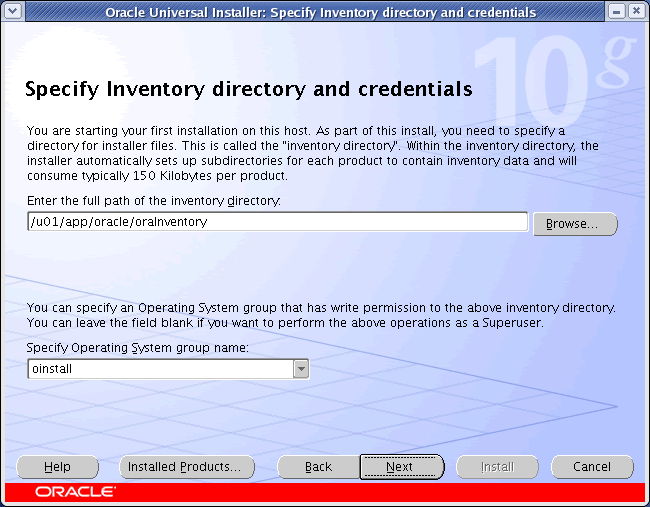
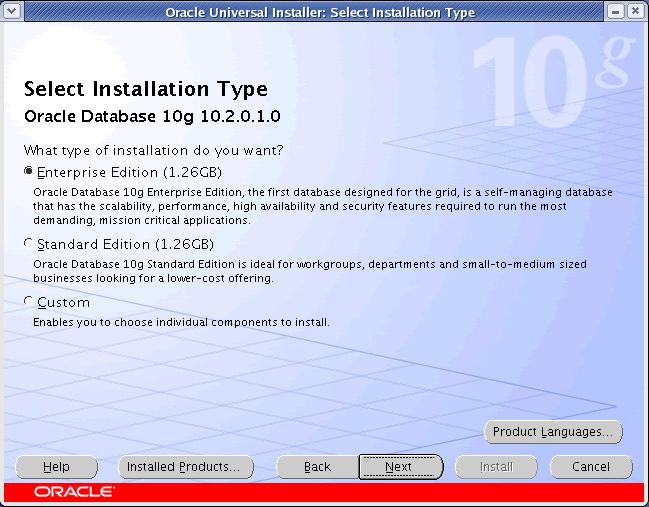
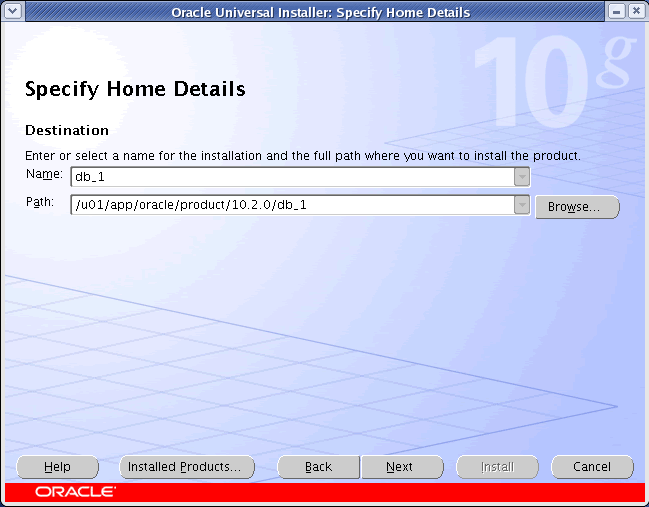
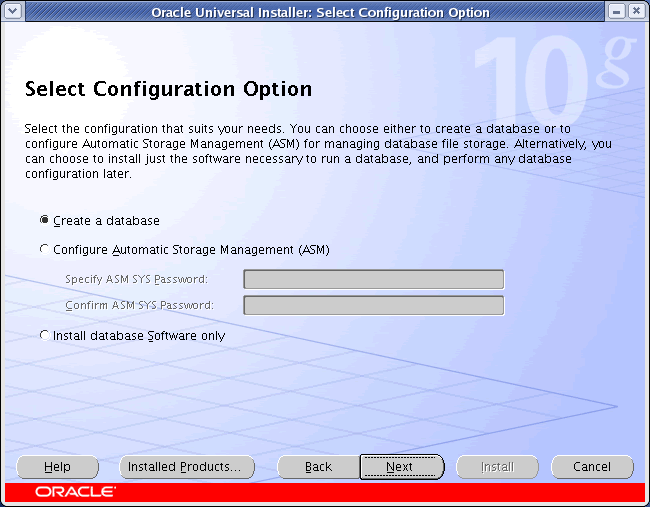
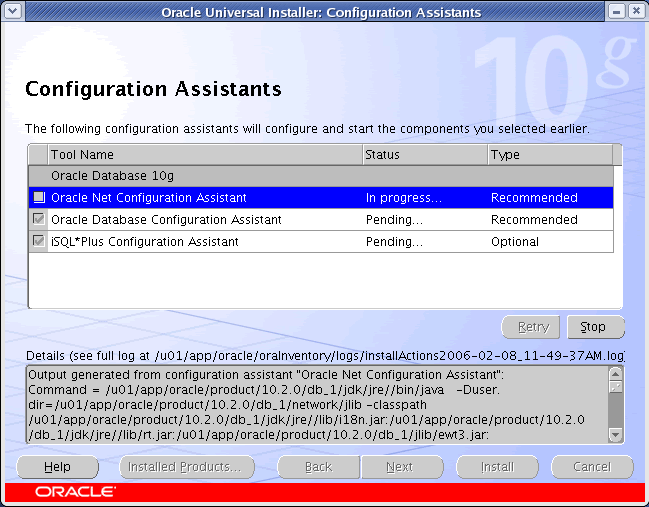
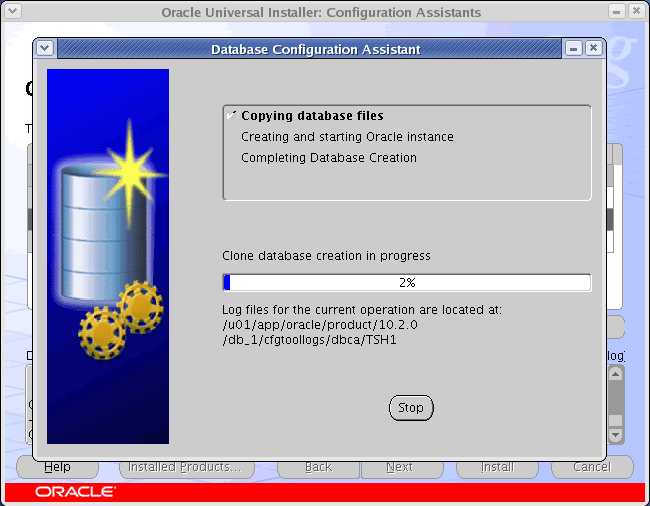
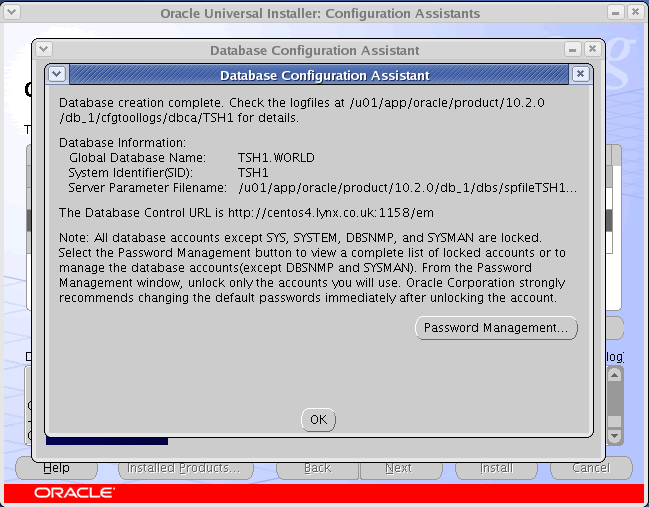
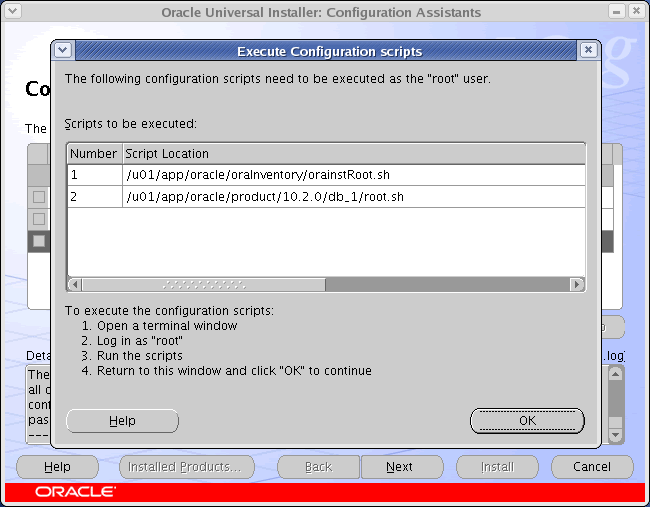
During the installation enter the appropriate ORACLE_HOME and name then continue installation. For a more detailed look at the installation process, click on the links below to see screen shots of each stage.
  1. Select Installation Method
  2. Specify Inventory Directory and Credentials
  3. Select Installation Type
  4. Specify Home Details
  5. Product-Specific Prerequisite Checks
  6. Select Configuration Option
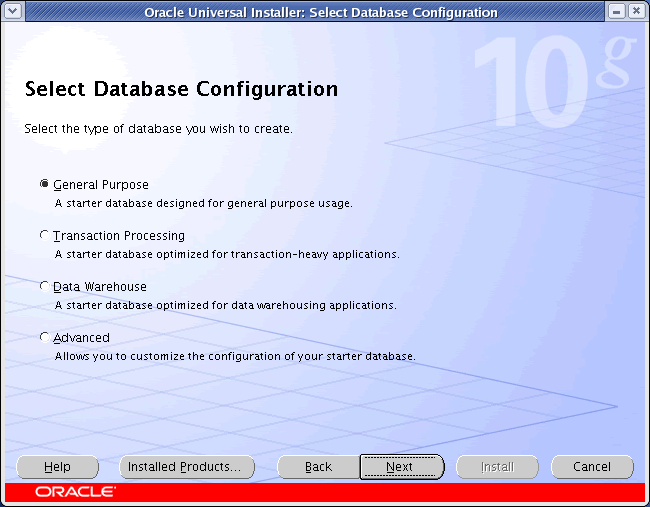
  7. Select Database Configuration
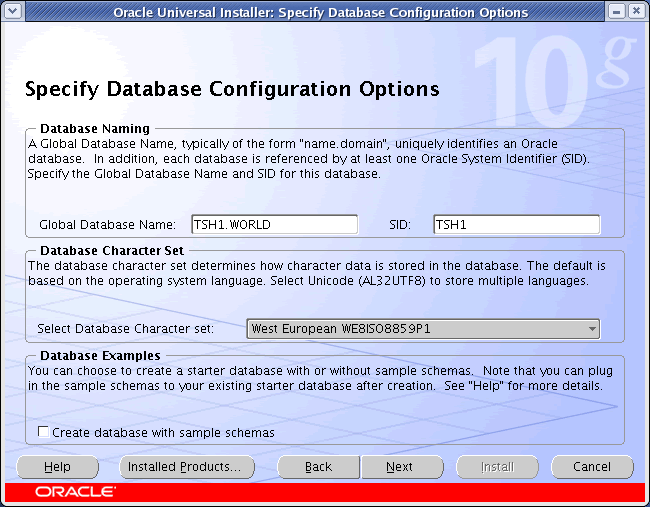
  8. Specify Database Configuration Options
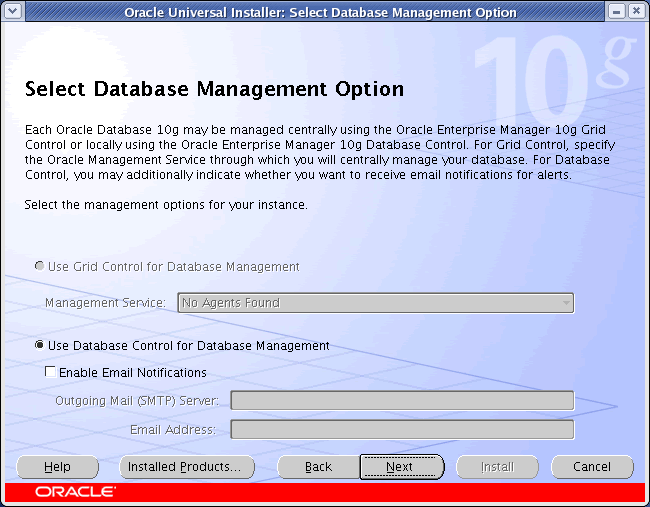
  9. Select Database Management Option
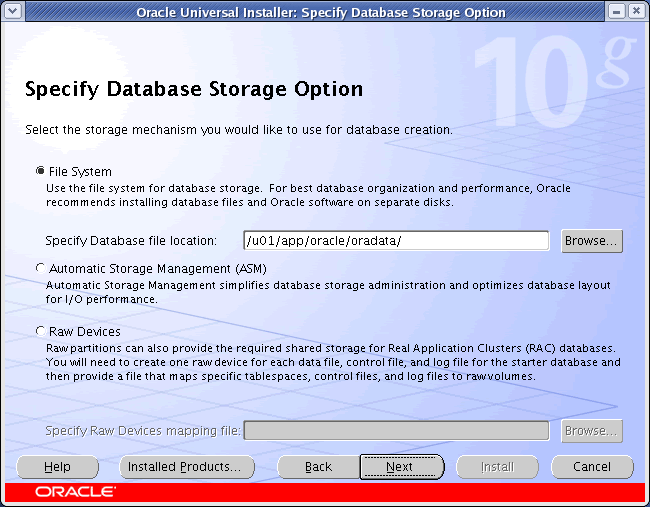
  10. Specify Database Storage Option
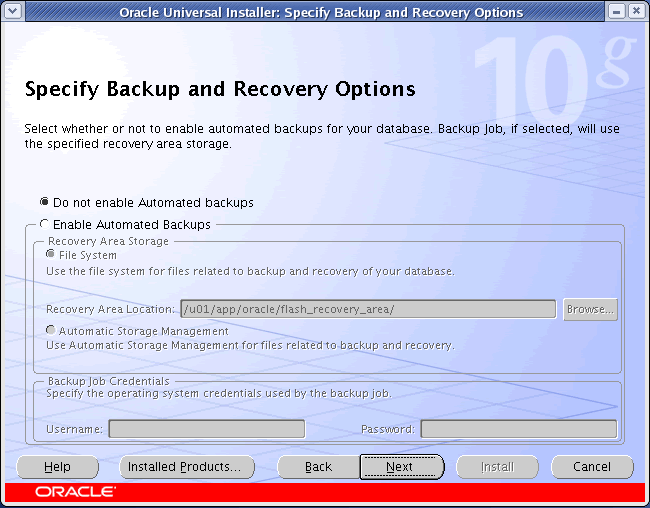
  11. Specify Backup and Recovery Options
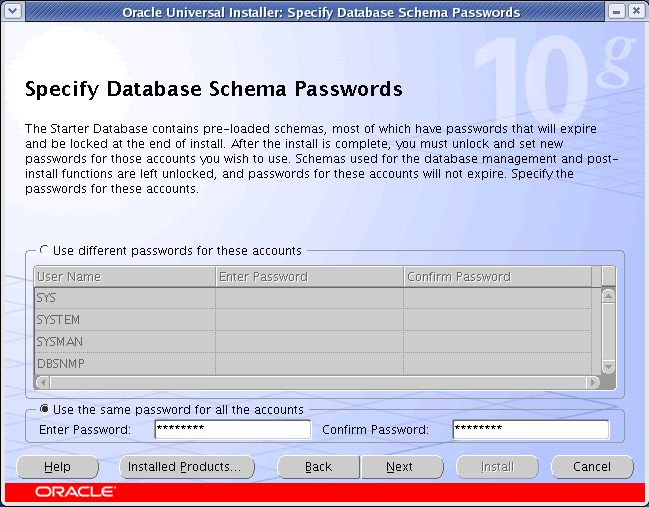
  12. Specify Database Schema Passwords
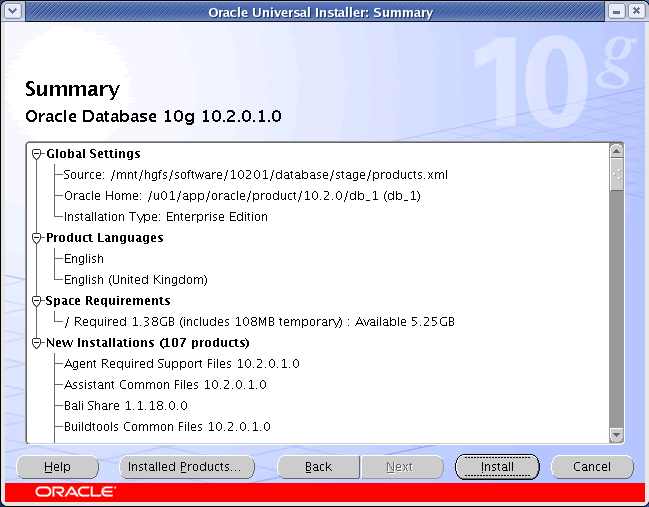
  13. Summary
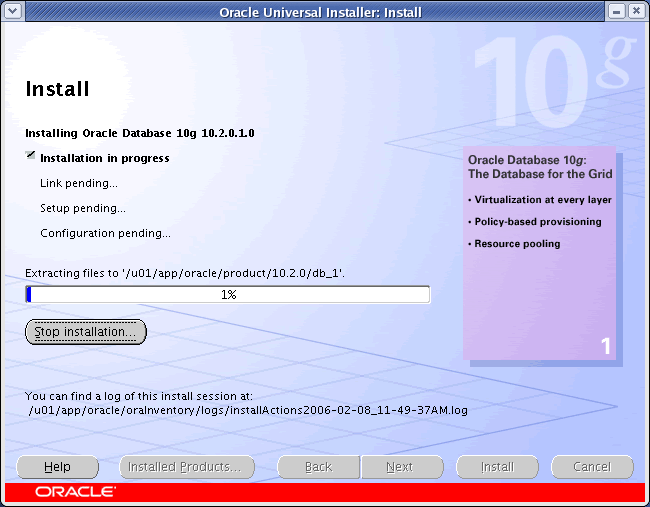
  14. Install
  15. Configuration Assistants
  16. Database Configuration Assistant
  17. Database Configuration Assistant Password Management
  18. Execute Configuration Scripts
  19. End Of Installation

Post Installation

Edit the /etc/redhat-release file restoring the original release information:
Red Hat Enterprise Linux Server release 5 (Tikanga)
Edit the /etc/oratab file setting the restart flag for each instance to 'Y':
TSH1:/u01/app/oracle/product/10.2.0/db_1:Y
For more information see:
Hope this helps. Regards Tim...

Back to the Top.
Thanks Oracle-Base

scp -C -r [file] utente@host:/[file]

Permette di effettuare la copia compressa (opzione -C), ricorsiva (opzione -r), e crittata di directory e dei file in esse contenuti tra due host.

Un esempio di utilizzo di copia da locale ad un host remoto:

[homer@Enigma homer]$ scp -C -r * homer@joker:/home/users/homer
Viene indicato di copiare tutto quanto presente nella directory corrente * sull'host joker identificandosi come utente homer nella cartella /home/users/homer
homer@joker's password: ******
Una effettuata l'autenticazione come utente homer ha inizio il trasferimento crittato dei dati
elenco.txt 100% |********************************************************| 0 00:00
pratice 100% |********************************************************| 18 00:00
programmatori.txt 100% |********************************************************| 0 00:00
main.c 100% |********************************************************| 0 00:00
test-sviluppo.txt 100% |********************************************************| 0 00:00
test.sh 100% |********************************************************| 103 00:00
winedoc-html.tgz.tar 100% |********************************************************| 5306 00:00

La struttura delle directory e i file contenuti sono copiati sull'host remoto

In caso di copia da remoto a locale la sintassi non varia di molto, è solamente necessario indicare prima l'host dal quale copiare i dati:
[homer@Enigma homer]$ scp -C -r homer@joker:/home/users/homer/* /home/homer/
homer@joker's password: ******
elenco.txt 100% |********************************************************| 0 00:00
pratice 100% |********************************************************| 18 00:00
programmatori.txt 100% |********************************************************| 0 00:00
main.c 100% |********************************************************| 0 00:00
test-sviluppo.txt 100% |********************************************************| 0 00:00
test.sh 100% |********************************************************| 103 00:00
winedoc-html.tgz.tar 100% |********************************************************| 5306 00:00


Per utilizzare scp, è necessario conoscere in anticipo la struttura delle directory ed avere un account sull'host remoto.

Resizing your file based XEN Virtual Machine on CentOS

One of the best references for getting started using virtual machines using XEN and CentOS can be found here. It is well written, very easy to follow and can quickly get you up and running.

Recently I had the task of revisiting a virtual machine that was provisioned with a file based file system as outlined in the tutorial. The main task I needed to achieve was to expand the size of the filesystem. Given that the tutorial has you build the virtual machine using tools that have this capability I figured it would not be that hard.

What is not obvious is that although the filesystem is made in such a way as to easily support this, that the actual practice of making it happen is a little more complicated. Having spent a lot of time googling all the various technologies and not coming up with a solution, I thought I would share what I learned, and give a recipe to perform the same operation on your own virtual server. All the usual caveats apply (use at your own risk, etc.)

If you are attempting to do something similar, or you are using a different Linux distribution it still may be useful to look at the following, and translate the steps accordingly.

Here is the recipe, feel free to let me know if it works for you:

1. Shutdown the VM

2. Backup the disk image file:

cp /xen/client8.img /xen/client8.img.backup

3. Restart the VM so that it can continue to serve while we work

4. Okay now make a working image from the backup:

cp client8.img.backup client8ext.img

5. Use dd to append more space to the end of the file:

dd if=/dev/zero of=/xen/client8xen.img bs=1M seek=10000 count=5000

This assumes an initial filesystem that is 10G and is expanding it to 15G

6. Check to see that the disk image file has grown the correct amount

ls -l /xen/client8ext.img

Should look something like

-rw-r–r– 1 root root 15728640000 Oct 26 02:22 client8ext.img

7. Mount the disk image on the loopback device:

/sbin/losetup /dev/loop1 /xen/image.img

Here I am mounting it on loop1 because my initial loop0 was already in use. Just make sure that you mount it on an unused loop device and you should be fine.

Check that it has mounted okay:

/sbin/fdisk -l -u /dev/loop1

Should look something like:

Disk /dev/loop1: 15.7 GB, 15728640000 bytes
255 heads, 63 sectors/track, 1912 cylinders, total 30720000 sectors
Units = sectors of 1 * 512 = 512 bytes

Device Boot Start End Blocks Id System
/dev/loop1p1 * 63 208844 104391 83 Linux
/dev/loop1p2 208845 20466809 10128982+ 8e Linux LVM

7. Find the start of the primary root partition. In the above example the LVM partition starts at 208845. Use the following formula to find the offset in the file where the LVM starts.

START * 512

8. Mount the volume group using the -o parameter and the calculated start value:

/sbin/losetup -o 106928640 /dev/loop2 /dev/loop1

9. Edit lvm.conf to filter out any other devices. If you are not actively using lvm on your working server it may be easy enough to just filter out everything but the loop devices. and return it back after you have finished. Here is a good reference on how to do this. In the end I just ended up changing the filter setting to

filter = [ "a/loop.*/", "r/.*/" ]

10. Rerun vgscan and check that it finds the volumes

/sbin/vgscan

You should see something like:

Reading all physical volumes. This may take a while…
Found volume group “VolGroup00″ using metadata type lvm2

11. Okay now to resize the physical volume. Check to see that you can see it:

/usr/sbin/pvdisplay

Should get something like:

— Physical volume —
PV Name /dev/loop2
VG Name VolGroup00
PV Size 9.66 GB / not usable 3.58 MB
Allocatable yes (but full)
PE Size (KByte) 32768
Total PE 309
Free PE 0
Allocated PE 309
PV UUID IUefv0-aFx9-iPQn-p2nb-VOGO-ioQo-4XsfUc

12. Okay now to resize the physical volume:

/usr/sbin/pvresize /dev/loop2

Check that it worked:

/usr/sbin/pvdisplay

Output should now look something like:

— Physical volume —
PV Name /dev/loop2
VG Name VolGroup00
PV Size 14.55 GB / not usable 17.84 MB
Allocatable yes
PE Size (KByte) 32768
Total PE 465
Free PE 156
Allocated PE 309
PV UUID IUefv0-aFx9-iPQn-p2nb-VOGO-ioQo-4XsfUc

13. Now to resize the logical volumes:

/usr/sbin/lvdisplay

Should get something like:

— Logical volume —
LV Name /dev/VolGroup00/LogVol00
VG Name VolGroup00
LV UUID 4vMcGJ-jOdo-idMa-Q3qR-31Hg-YKHs-2ppTQA
LV Write Access read/write
LV Status NOT available
LV Size 9.16 GB
Current LE 293
Segments 1
Allocation inherit
Read ahead sectors 0

— Logical volume —
LV Name /dev/VolGroup00/LogVol01
VG Name VolGroup00
LV UUID wRtiQA-dZX1-fKI0-4yv2-FfPw-0F3C-8RThgX
LV Write Access read/write
LV Status NOT available
LV Size 512.00 MB
Current LE 16
Segments 1
Allocation inherit
Read ahead sectors 0

14. Start by extending the swap space:

/usr/sbin/lvextend -L +512M /dev/VolGroup00/LogVol01

Then extend the root partition. Let’s use all available space this time.

Look up free extents:

/usr/sbin/vgdisplay

Get Something like:

— Volume group —
VG Name VolGroup00
System ID
Format lvm2
Metadata Areas 1
Metadata Sequence No 5
VG Access read/write
VG Status resizable
MAX LV 0
Cur LV 2
Open LV 0
Max PV 0
Cur PV 1
Act PV 1
VG Size 14.53 GB
PE Size 32.00 MB
Total PE 465
Alloc PE / Size 325 / 10.16 GB
Free PE / Size 140 / 4.38 GB
VG UUID ecCfkb-oPKd-Tf4S-VTLj-2M9c-LJJj-BHBPh2

15. Free extents are 140. Use this to extend the root partition:

/usr/sbin/lvextend -l+140 /dev/VolGroup00/LogVol00

16. Activate the root logical volume so that we can resize it:

/usr/sbin/lvchange -ay /dev/VolGroup00/LogVol00

17. Now we need to resize the file system. The docs I found suggest that you run a filesystem check both before and after you have resized the partiion:

/sbin/e2fsck -f /dev/VolGroup00/LogVol00
/sbin/resize2fs /dev/VolGroup00/LogVol00

Check the filesystem again:

/sbin/e2fsck -f /dev/VolGroup00/LogVol00

18. Okay now deactivate the root partition:

/usr/sbin/lvchange -an /dev/VolGroup00/LogVol00

19. Activate the swap partition:

/usr/sbin/lvchange -ay /dev/VolGroup00/LogVol01

20. Run mkswap on the extended swap partition:

/sbin/mkswap /dev/VolGroup00/LogVol01

21. Everything okay, now deactivate it again:

/usr/sbin/lvchange -an /dev/VolGroup00/LogVol01

22. Change the size of the LVM partition on /dev/loop1 using fdisk. This step caught me out. The disk partition information needs to be updated to reflect the new LVM size. Just launch fdisk and find the last partition. Then change it to reflect the full size of the drive.

23. Deactivate the loop devices:

/sbin/losetup -d /dev/loop2
/sbin/losetup -d /dev/loop1

Your file based filesystem should now be ready to use with your current virtual machine. Change the appropriate line in your server’s XEN configuration and restart your server and enjo